Dispatch planning for service providers
Proof of attendance: answer ‘When were you there?’ with evidence
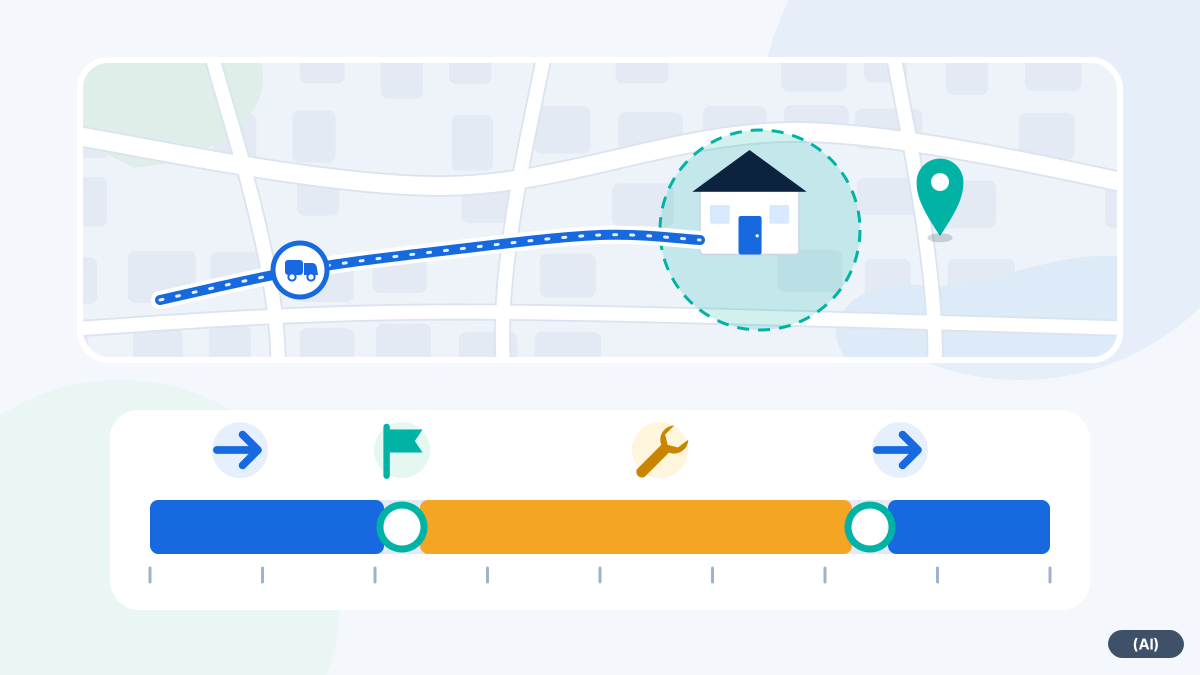
Customer sites are set up as geofences. The system records when a vehicle arrives and leaves again, and shows the journey there on the map.
What the record consists of
Geofence at the customer site
A circle or area around the job site. Entry and exit generate events with timestamps.
History view
Route travelled, stops, timeline and speed for each day and each vehicle.
Events along the route
Ignition, alerts and zones appear as markers in the history.
Location data becomes a time record
Customers often have questions: was the technician really there at ten o'clock? How long did the job take? Anyone who has to answer from memory loses time and sometimes the argument.
The Proof of attendance in fleet365 is based on data. The travel time is derived from the journey, the time on site from entering and leaving the geofence, the stationary time from the stop at the location. All details can be retrieved from the vehicle's history.
- Arrival and departure times for each job site
- Route to the site shown as a line on the map
- Stops with their duration in the timeline
- Route history search: where was the vehicle at a particular location?
Which times can be derived
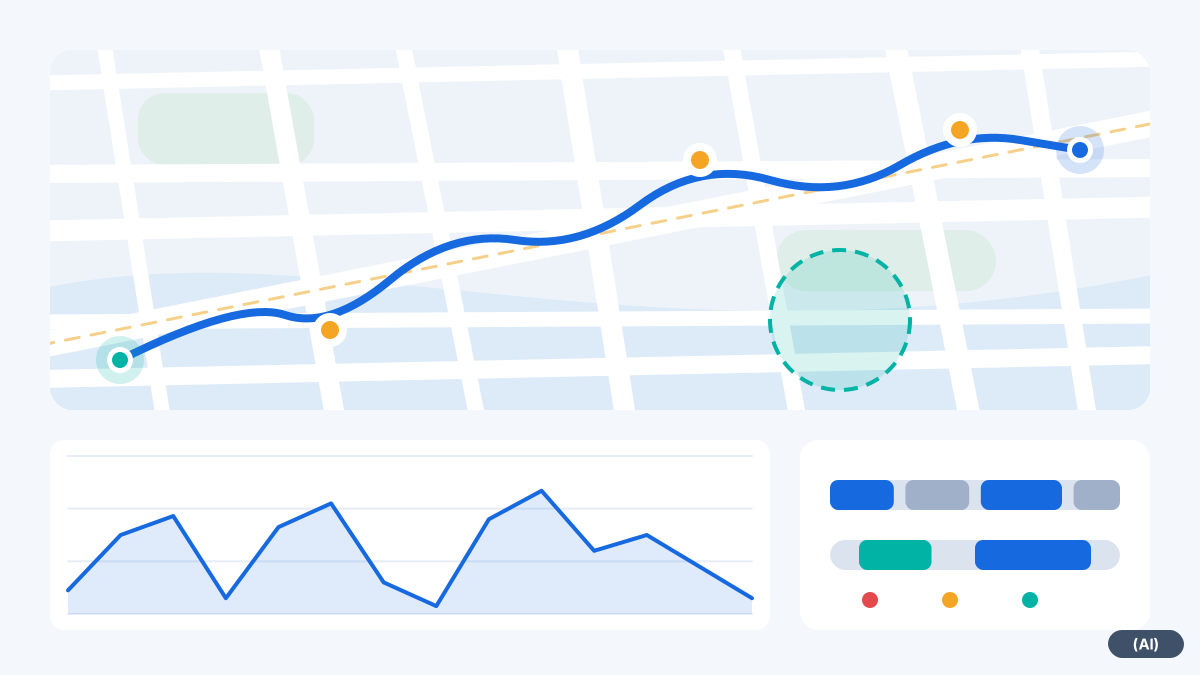
The table shows how each figure is derived. Their accuracy depends on the location data and the geofence radius.
| Time | How it is derived | What it is useful for |
|---|---|---|
| travel time | From departure from the previous location until arrival in the geofence | Billing of travel to site, planning of future tours |
| time on site | Between entering and leaving the geofence | Proof for customers, basis for time-based billing |
| stationary time | Vehicle stopped at the location | Make breaks and waiting times visible |
| Departure | Leaving the geofence | Document the completion of the job |
How to set it up
- 1
Create customers as geofences
Search for the address, draw a radius or area, choose the type of zone.
- 2
Journey and event are recorded automatically
As soon as the vehicle enters or leaves the zone, the system stores an event.
- 3
Retrieve the record
Select the day in the history view. Route, stops and times can be retrieved.
- 4
Check the radius
After the first jobs you will see whether the radius is right, and you can adjust it.
Tips for meaningful records
A record is only as good as its basis. With a few simple steps, the times become more reliable.
- Choose a suitable radius for each customer: a detached house needs little, an industrial site needs more
- Set up regular customers once, and the record is then created at every visit with no further effort
- Check the history view regularly with spot checks to verify the radius and assignment
- Supplement important jobs in your job management system with the time from the history
Frequently asked questions
Is the proof admissible in court?
A log can serve as an indication. Whether it is accepted in an individual case is decided by the competent body. We therefore do not promise any particular evidential value.
How long is the data available?
You agree the retention periods with Biricon. Please raise this with us during set-up.
How accurate is the arrival time?
As accurate as the position and radius of the geofence. A narrow radius captures the arrival early, a wide radius as soon as the vehicle enters the area.
Does the technician have to do anything?
Not for arrival and departure. The vehicle reports its position, and the geofence detects the rest.
Can the customer retrieve the proof themselves?
Via the customer portal, customers see their own vehicles. How this can look for your customers is described under Customer information.
Would you like to see fleet365 in action?
We show you tracking using your vehicles and workflows. With no obligation, in German, from Austria.